Introduction
This is a quick guide on how to install BERNESE 5.4 GNSS Software on macOS 10.13 High Sierra and later).
This guide works on Apple Silicon and INTEL Macs.
Last updated on:
Jan 8, 2026::
– Updated guide for BERNESE GNSS version v5.4 (was BERNESE GNSS v5.2 before)
– GFORTRAN replaced with Macports “GNU Compiler Collection GCC15+”
– Qt4 replaced with Macports “Qt4 v4”
– Removed soft-link creation of /opt/local/libexec/qt4/Resources/qt_menu.nib (no more required).
February 1, 2022: – Corrections
December 10, 2019: – Rewrote Macports QT4 installation, added more errors and fixes
August 22, 2017: – Added notes to install QT4.x from Macports
April 03, 2015: – First post
Prerequirements
- Xcode command line tools. Install with command:
xcode-select --install
- Recommnded (not required): Apple Xcode Development Tools (free) / requires AppleID account to download freely from Mac AppStore. Tip:Check XCode Releases site to verify which version you need https://xcodereleases.com
- Required: QT4 UI framework from Macports or Homebrew
- Required: Install Macports
Contents
- 1a. Install QT4 from Macports
- 1b. Install GNU Fortran gfortran
- 1c. Setup Bash environment before launching the setup script
- 2.Launch setup.sh
- 3. Exit Config Menu and edit LOADGPS.setvar
- 4. Compile the FORTRAN programs
- 5. Install the online updates
- 6. Compile BERNESE MENU
- 7. Build errors, anyone ?
- 8. Fortran compile errors after applying updates
- 9. Launch BERNESE MENU
1a. Install QT4 from Macports
To compile the BERNESE MENU we need to install QT4 UI framework from Macports.
Since we need back-compatibility with QT3, install QT4 via Macports or Homebrew (QT5 & QT6 will not work to compile or install the BERNESE MENU)
QT4 from Macports will be installed in directory:
/opt/local/libexec/qt4
Install QT4 via Macports:
#sudo port selfupdate

#sudo port install qt4-mac
1b. Install GNU-Fortran gfortran from Macports GCC15+
To compile BERNESE Fortran programs on macOS the easiest way is to install GNU’s Compiler Collection v15+ from Macports (or Homebrew):
#sudo port selfupdate

#sudo port install gcc-15
The installed GFORTRAN port binary of GCC-15 will be installed as “/opt/local/bin/gfortran-mp-15”.
Note: If you install GCC-14 it would then be “/opt/local/bin/gfortran-mp-14”.
To simplify the installation we softlink the binary “/opt/local/bin/gfortran-mp-15” as “gfortran” with command:
sudo ln -s /opt/local/bin/gfortran-mp-15 /opt/local/bin/gfortran
Don’t forget to update your PATH of your shell environment, e.g in .bashrc:
PATH=/bin:/sbin:/usr/bin:/usr/sbin:/usr/X11/bin:/opt/local/bin/:
1c. Setup Bash environment before launching the setup script
After you have downloaded the BERNESE UNIX version you must launch the setup.sh script from the installer directory (e.g. my installer dir is called “BERN54_Install”).
IMPORTANT: Before executing the setup.sh command you must tell where the QTDIR is located, this is done by entering the command, or else you will get the error:
The QT library seems not to be installed correctly.
If QT4 was installed from Macports, set QTDIR as follows:
export QTDIR=/opt/local/libexec/qt4/
2. Launch setup.sh
#cd ~/BERN54_Install/

#./setup.sh
The setup script will ask the location of the installation directory:
***************************************
*        Bernese GNSS Software        *
*             Installation            *
*  (UNIX/Linux or Mac OS X platform)  *
***************************************

Full path where the BERN54 software tree will be installed
[ /Users/MYUSERNAME ]:

The software will be installed in /Users/MYUSERNAME/BERN54

Press the return key to continue or Ctrl-C to abort
Just type RETURN and the installer extracts all the *.tgz files in your $HOME/BERN54 directory.
Then continue with the setup script …
Perl program used [ /usr/bin/perl ] :
After that it will display the CONFIGURATION MENU:
Enter “1” to update the ‘LOADGPS.setvar’ file.
Current Values:
--------------
    VARIABLE DESCRIPTION           VARIABLE NAME      VARIABLE VALUE
 1: Path to software               C               => /Users/MYUSERNAME/BERN54
 2: Path to Qt libraries           QTBERN          => /opt/local/libexec/qt4/
 3: Operating system group         OS              => UNIX
 4: Operating system name          OS_NAME         => DARWIN
 5: Fortran compiler name          F_VERS          => GNU
 6: List of additional compilers   F_VERS_LIST     =>
 7: Host of the BPE server         BPE_SERVER_HOST => YOUR_HOSTNAME.local
 8: Path to user environment       U               => ${HOME}/GPSUSER52
 9: Path to temp. user environment T               => ${HOME}/GPSTEMP
10: Path to campaign area          P               => ${HOME}/GPSDATA/CAMPAIGN52
11: Path to datapool area          D               => ${HOME}/GPSDATA/DATAPOOL
12: Path to savedisk area          S               => ${HOME}/GPSDATA/SAVEDISK
Accept the values (y/n): y

**********************************************************************
* /Users/MYUSERNAME/BERN54/LOADGPS.setvar
* has been updated.
**********************************************************************

Press Enter to continue
We need to setup the config file LOADGPS.setvar to allow the installer to finish without errors.
3. Exit Configuration Menu and edit LOADGPS.setvar
By default the file LOADGPS.setvar is loaded by the setup.sh file to include the various installation variables like Installation Dir, Operating System etc.
Note that I used for QTBERN the Macports path of QT4:
export QTBERN="/opt/local/libexec/qt4/"
in:
$HOME/BERN54/LOADGPS.setvar
Now that the installer has created the LOADGPS.setvar in file we want to load these BERNESE variables by sourcing it out:
#source ~/BERN54/LOADGPS.setvar
This command loads the various variables to your shell.
4. Compile the FORTRAN programs
First we want to try to compile the (FORTRAN) programs by selecting the point 5 in the configuration menu.
Note: Don’t install the online updates first!
First compile the Fortran programs before installing the online updates! Installing the online updates before compiling the programs gives you a lot of errors.
==========================================
CONFIGURATION OF THE BERNESE GNSS SOFTWARE
==========================================
 0 ... Complete installation (Steps 1 to 5)
 1 ... Update LOADGPS.setvar
 2 ... Install online updates
 3 ... Add a new user environment
 4 ... Compile the menu
 5 ... Compile the programs
 6 ... Install the example campaign
 7 ...   ---
 x ... Exit
Enter option: 5
Running the compilation of the Fortran programs.
This can take a while...
It depends on the computer performance.

All compilation output is redirected into file
/Users/MYUSERNAME/BERN54/SCRIPT/EXE/COMPLINK.log
5. Install the online updates
Check BERNESE update page:
Press Enter to continue and try to install the online updates.
==========================================
CONFIGURATION OF THE BERNESE GNSS SOFTWARE
==========================================
0 ... Complete installation (Steps 1 to 5)
1 ... Update LOADGPS.setvar
2 ... Install online updates
3 ... Add a new user environment
4 ... Compile the menu
5 ... Compile the programs
6 ... Install the example campaign
7 ...   ---
x ... Exit

Enter option: 2

Updated files will be extracted to: /Users/MYUSERNAME/BERN54

If you made changes in the Bernese source code, you can specify
an alternative directory and merge the updated files manually
into your version to keep your changes.

Extract the files to /Users/MYUSERNAME/BERN54 (y/n): y
x BPE/
x BPE/bpe_util.pm
x BPE/RUNBPE.pm
x GPS/
x GPS/SCRIPT/
****************************
Source code update completed.
****************************
To ensure that the Makefile containing all dependencies of the source files is up-to-date you should run:
'$X/EXE/makemake.pl -r $C'
To update the source files and all its dependencies just execute the following command:
#perl /Users/MYUSERNAME/BERN54/SCRIPT/EXE/makemake.pl -r $C
The output is:
makemake.pl started at: Fri Dec 20 14:34:36 2019 (1334Z)
/Users/MYUSERNAME/BERN54/LIB/OBJ_GNU/Makefile
/Users/MYUSERNAME/BERN54/LIB/OBJ_GNUc/Makefile
Then recompile the software using ${X}/EXE/configure.pm, or run the Perl script:
#perl /Users/MYUSERNAME/BERN54/SCRIPT/EXE/cbern.pl COMPLINK
Now quit the configuration menu (enter ‘x’) and recompile the fortran programs with its online updates:
#perl /Users/MYUSERNAME/BERN54/SCRIPT/EXE/cbern.pl COMPLINK
This will take some time for compiling the Fortran source code.
6. Compile BERNESE MENU
To avoid getting errors when compiling Menu edit the Qt4-file
~/BERN54/MENU/menu.pro
and after the lines:
QMAKE_LFLAGS += -static-libgcc
#QMAKE_LIBS += -lz
add the following lines:
# For macOS
# -----------------------
macx {
  # Disable macOS Apple Bundle creation: Don't create the "menu_tmp.app"
  # since it's a link to 'menu' inside menu_tmp.app/Contents/MacOS/menu anyway.
  CONFIG-=app_bundle
  # Don't use -static-libgcc on macOS
  QMAKE_LFLAGS -= -static-libgcc
  # Use libzip
  QMAKE_LIBS += -lz
}
Or just remove:
- a. -static-libgcc by commenting out the line:
QMAKE_LFLAGS += -static-libgcc
to:
# On macOS (Darwin): don't use -static-libgcc

##QMAKE_LFLAGS += -static-libgcc
- b. Append ZIP-library (-lz) to QMAKE_LIBS by commenting out the line as follows:
QMAKE_LIBS += -lz
To recompile the MENU source code with this new changes,
- simply execute the command:
perl ~/BERN54/SCRIPT/EXE/cmenu.pl - or launch the configuration again from your $HOME/BERN54/SCRIPT/EXE folder:
#source ~/.bash_profile

#perl ~/BERN54/SCRIPT/EXE/configure.pm
Then choose option: “4 … Compile BERNESE Menu”.
It should compile correctly the Menu.
7. Build errors, anyone ?
If you get build errors for the Menu, check the build-log file ~/BERN54/MENU/MENUCOMP.log first.
If you get the error:
Undefined symbols: "_compress"...
then follow the steps in chapter “6. Compile BERNESE MENU” by editing
$HOME/BERN54/MENU/menu.pro
If you get the error:
"-static-libgcc"
in
~/BERN54/MENU/MENUCOMP.log
then follow the steps in chapter “6. Compile BERNESE MENU” by editing:
$HOME/BERN54/MENU/menu.pro
After applying these changes clean the directory ~/BERN54/MENU by executing the commands:
Don’t execute the configure.pm command for the MENU, or else it will overwrite your $HOME/BERN54/MENU/Makefile file.
Just recompile the menu source code with command:
#make
or execute the perl script:
#perl ~/BERN54/SCRIPT/EXE/cmenu.pl
8. Fortran compile errors after applying updates
If you have applied the updates from the Configure Menu (“option 2”) and you get a program compilation error, then you need first to update the dependencies.
According to the README/Updates.txt file:
"...to activate those changes, you need a Fortran compiler (specified with the environment variable "F_VERS") and the Make utiltiy.
To ensure that the Makefile containing all dependencies of the source files is up-to-date you should run '$X/EXE/makemake.pl -r $C' previously."
So just execute the following command to update the dependencies:
#perl $HOME/BERN54/SCRIPT/EXE/makemake.pl -r $C
9. Launch BERNESE MENU
Before launching don’t forget to install your LICENSE file as noted in the manual.
Then Launch BERNESE 5.4 by typing the following command in the “Terminal.app”:
#G
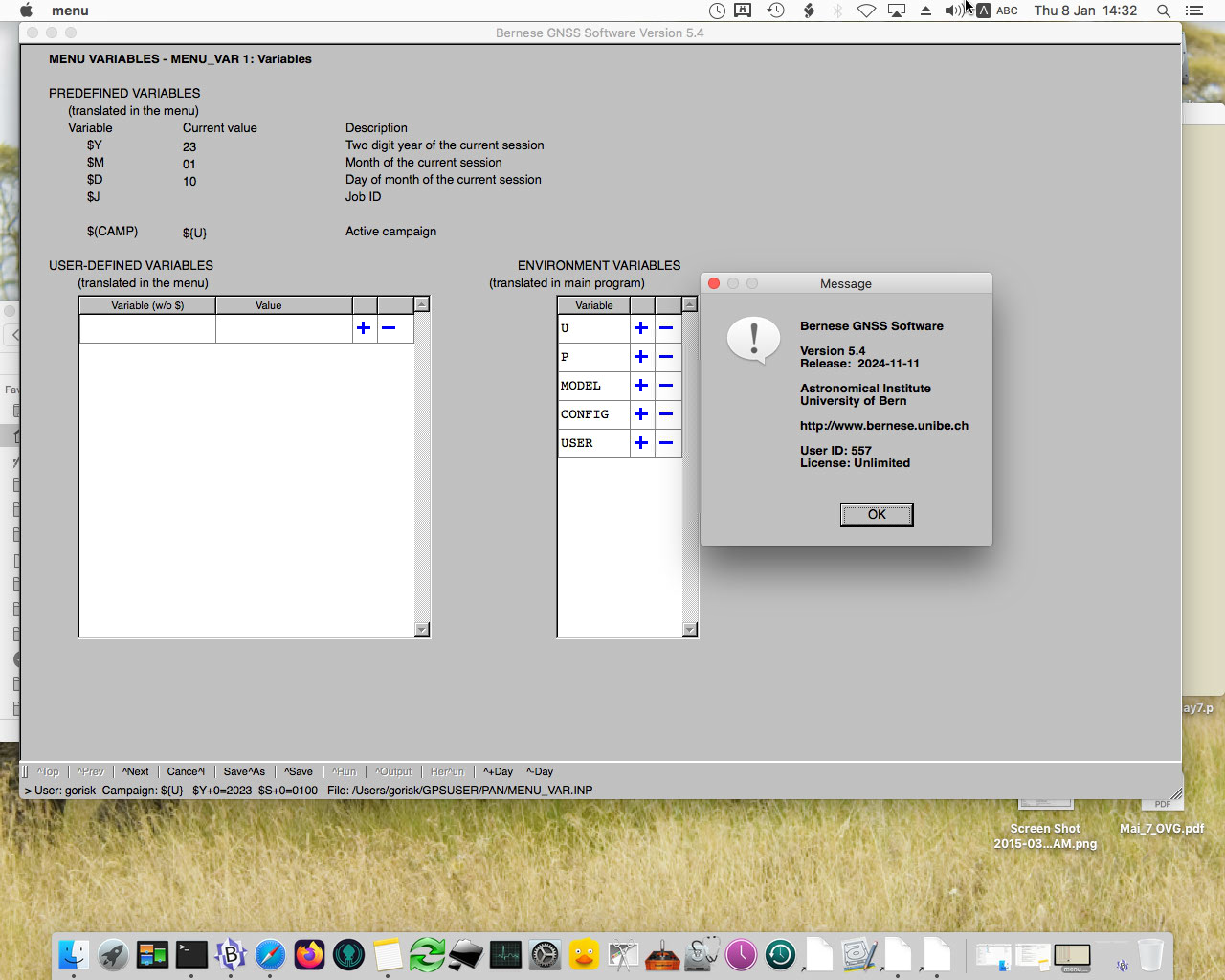
A X11 Window pops up and the BERNESE Menu appears.
Enjoy!
Comments are closed.